
Creating and Managing Jobs
Jobs are the foundation of your hiring process in Hifinity. Learn how to create, configure, and manage job postings to attract the right candidates.
Overview
Each job in Hifinity represents a specific opening in your organization. Jobs can be kept private for internal use or made public to appear on your public careers page. You can attach interview templates to jobs and track all applications and candidates associated with each position.
Creating a New Job
Step 1: Access Job Creation
From your Business Portal dashboard or the Jobs page, click the "Create Job" button in the top right corner.

Step 2: Fill in Basic Information
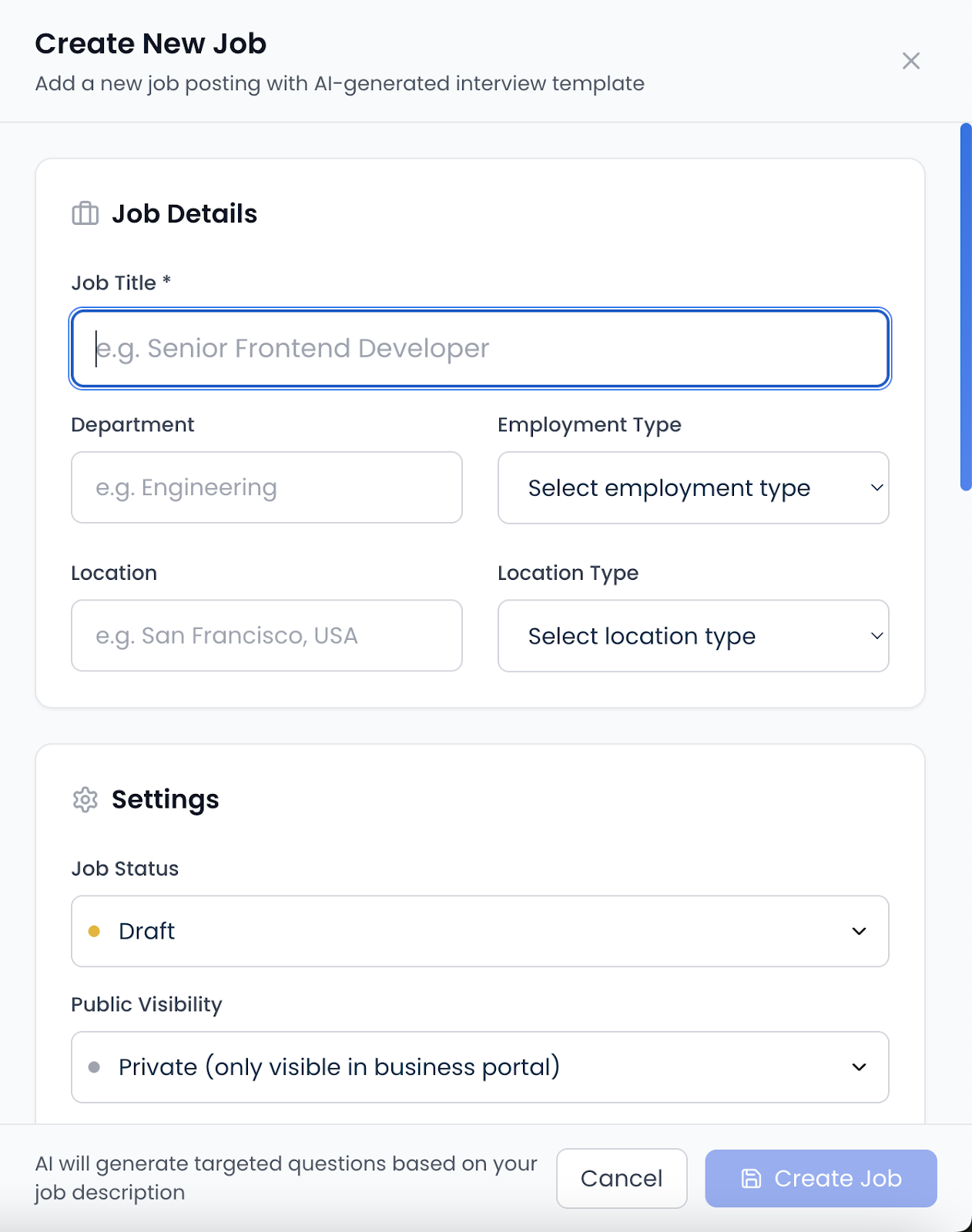
The job creation form requires the following information:
Job Title* (Required)
Enter a clear, descriptive job title (e.g., "Senior Frontend Developer", "Marketing Manager")
Department
Specify the department (e.g., Engineering, Marketing, Sales, HR)
Location
Enter the job location (e.g., "San Francisco, CA", "New York, NY")
Location Type
Choose from: Remote, Hybrid, or On-site
Employment Type
Select: Full-time, Part-time, Contract, or Internship
Step 3: Add Job Description & Requirements
Craft a compelling job description that includes all the details candidates need:
- •Overview of the role and responsibilities
- •Day-to-day activities and expectations
- •Required skills and qualifications
- •Education and experience requirements
- •Company culture, values, and benefits
Best Practice
Use clear, inclusive language that accurately describes the role. Include specific technical skills, required experience, and key responsibilities—the AI will use this information to generate relevant interview questions.
Step 4: Configure AI Interview Template
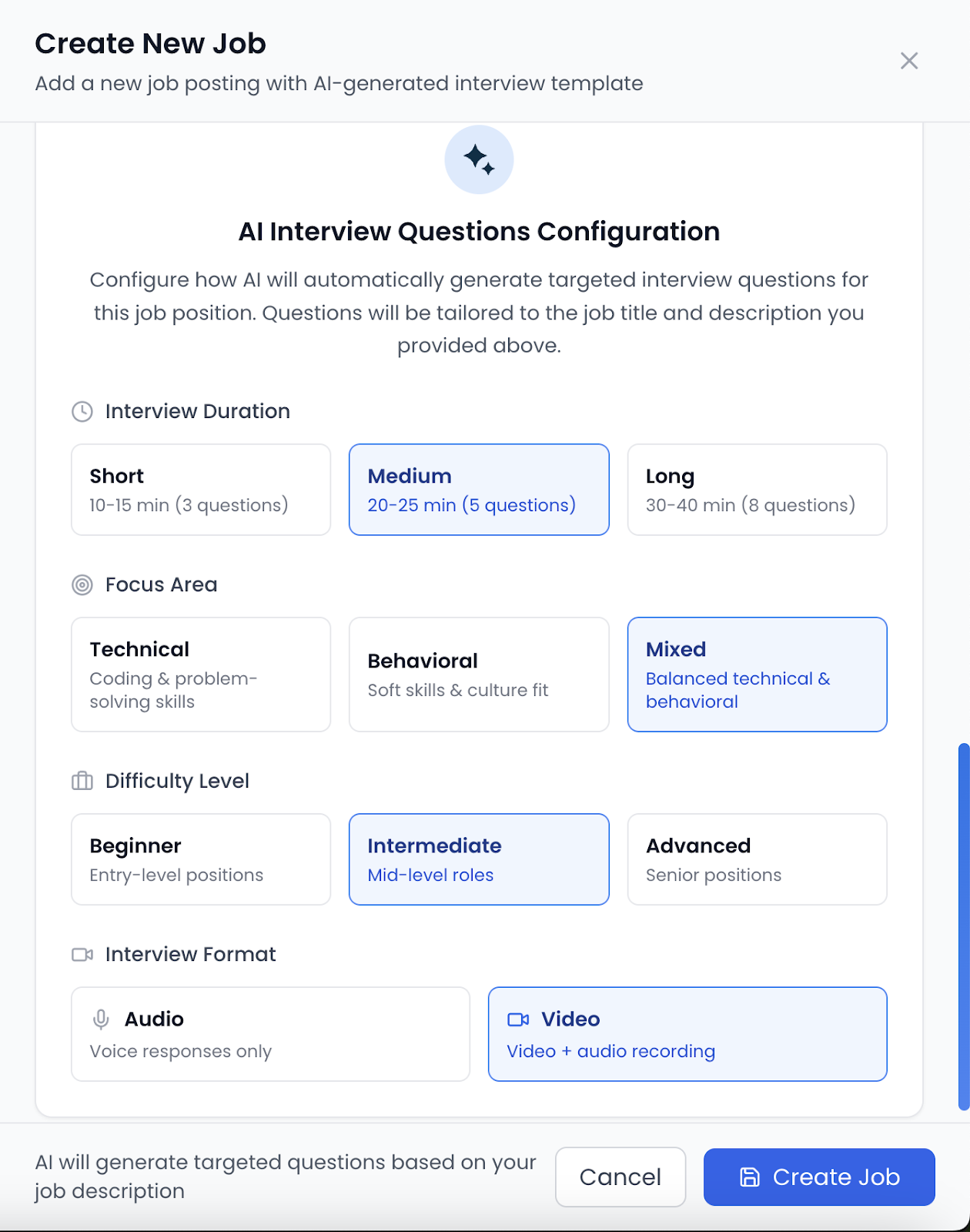
AI interview questions are automatically generated based on your job description. Configure the interview settings:
- •Duration: Short (10-15 min), Medium (20-25 min), or Long (30-40 min)
- •Focus Area: Technical, Behavioral or Mixed
- •Difficulty Level: Beginner, Intermediate, or Advanced
- •Interview Format: Video or Audio-only
Pro Tip
The AI analyzes your job description to generate relevant questions automatically. A detailed job description leads to more targeted and effective interview questions.
Job Visibility Settings
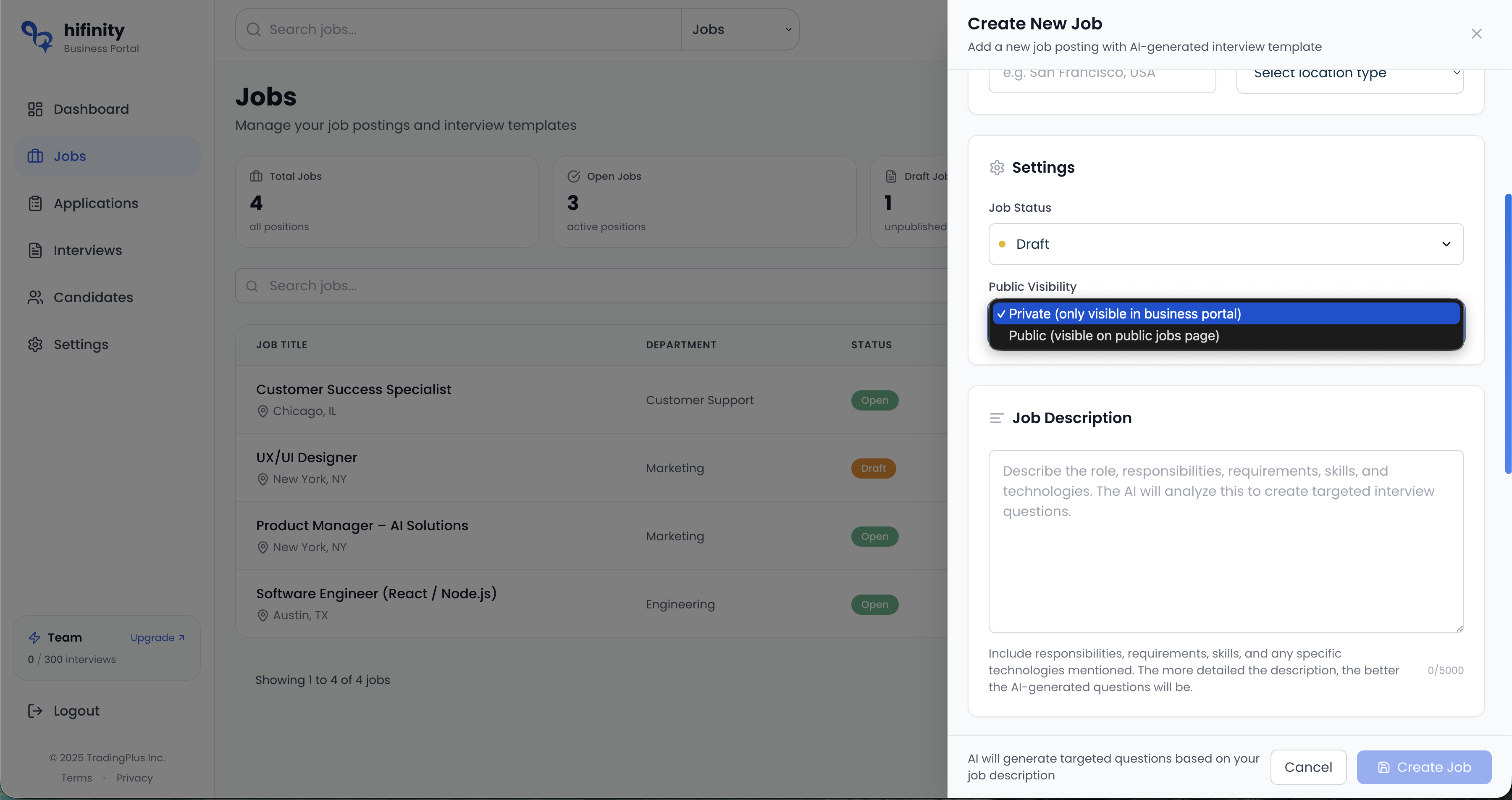
Control whether your job posting is public or private:
Public Job
- Visible on your public careers page
- Candidates can apply directly
- Increased candidate reach
- SEO-optimized job listing
Private Job
- Internal use only
- Manually invite candidates
- Confidential positions
- Controlled candidate pool
Managing Existing Jobs
Once created, you can manage your jobs from the Jobs page:
Job Actions
Edit Job Details
Update job information, description, or requirements at any time
View Applications
See all candidates who have applied for this position
Manage Templates
Create, edit, or assign interview templates to the job
Delete Job
Remove jobs that are no longer needed (only draft jobs with no published templates)
Job Status
Jobs can have three status states:
Open
Actively accepting applications. Public jobs appear on careers page. You can send interviews to candidates.
Closed
No longer accepting new applications. Job is removed from public careers page. Existing applications remain accessible.
Draft
Job is being prepared but not yet active. Not visible to anyone except team members. Can be edited or deleted freely.